A second monitor is the cheapest productivity upgrade most people never make. Not a new laptop, not a standing desk, not a $300 chair — a second screen. It sounds small until you've actually worked with two displays: email and Slack on one, the actual work on the other, no more alt-tabbing sixty times an hour like a caffeinated squirrel. The good news is you don't need to spend $400 on a monitor to get this. You need to understand four things — resolution, size, refresh rate, and panel type — and then ignore almost everything else the marketing copy is trying to sell you.
- Top pickAcer SB220Q bi 21.5" Full HD IPS Monitor~$90
- Best budgetAnker Cable Management Box~$26
- Worth the splurgeSamsung Odyssey G5 27" Curved QHD Monitor~$220
This is not about monitor arms or mounts — we've already covered which arms are worth buying and which to skip. This is about the screen itself: what's worth paying for, what's marketing noise, and which budget picks actually hold up after the first month.
Do you need a second monitor, or do you need an ultrawide?
Before you buy anything, settle this question, because it changes your entire shopping list. A second monitor gives you two genuinely separate windows with a visible bezel between them — great for keeping distinct apps distinct (reference material on one screen, your document on the other) and for anyone who occasionally needs to physically angle one screen toward a coworker. An ultrawide gives you one continuous canvas, which is better for a single sprawling workspace like a video timeline, a wide spreadsheet, or side-by-side documents you want to treat as one surface without a seam interrupting your eye line.
The budget math also favors different setups depending on what you already own. If you have a decent laptop or existing monitor, adding one budget 24" second screen for $100–130 is the cheapest way to get more usable space. If you're buying your entire setup from scratch and don't need the visual separation, a single 29"–34" ultrawide can replace two monitors for roughly the price of two decent budget screens combined — with one HDMI cable and one power brick instead of two. Neither answer is universally right. If your work is genuinely two separate tasks (chat + work, reference + writing), buy the second monitor. If your work is one wide task, buy the ultrawide.
Resolution and size: the tradeoff nobody explains honestly
Here's the part every buying guide gets vague about: resolution and size aren't independent decisions, they're a package deal called pixel density, and getting the pairing wrong is the single most common budget-monitor mistake. A 1920×1080 (1080p) panel at 24" looks crisp and clean. Stretch that same 1080p resolution across a 27" panel and text gets visibly softer — you're spreading the same number of pixels over more glass, so everything looks slightly fuzzy at normal reading distance. This is why a cheap 27" monitor sometimes looks worse than a cheap 24" one, even though "27 inch" sounds like the upgrade.
The practical rule: 24" pairs well with 1080p. 27" wants 1440p (2560×1440) to keep text sharp — this is the sweet spot for most people who use a monitor for text, browsers, spreadsheets, and light photo work. 4K (3840×2160) is genuinely worth it at 27" only if you also do detailed photo or video editing, or if you like running Windows/macOS display scaling to get desktop-app-crisp text with room to spare; for plain office work, 4K on a budget panel is often paying for pixels you can't fully appreciate at typical viewing distance anyway. If your budget forces a choice between a bigger screen at lower resolution and a smaller screen at higher resolution, pick the higher resolution — sharp text at a slightly smaller size beats a big blurry one every time.
Refresh rate: 60Hz is not the enemy for real work
Refresh rate gets marketed aggressively because gaming monitors are a higher-margin category, and that marketing bleeds into every monitor listing whether it's relevant or not. Here's the honest version for anyone buying a second screen for email, docs, spreadsheets, browser tabs, or video calls: 60Hz is completely fine. Refresh rate matters most when something on screen is moving fast and continuously — competitive gaming, fast-scrolling content, cursor tracking in twitchy applications. For a second monitor doing reference material, chat, and static documents, the difference between 60Hz and 144Hz is not something you will notice in daily use.
Where it's worth paying a little more: if you'll occasionally use the second monitor for casual gaming, or if you do a lot of fast scrolling through code or long documents and are sensitive to motion blur, a 75Hz or 100Hz panel (increasingly common even in budget monitors now) is a nice-to-have that costs very little extra. But don't let a refresh-rate spec sheet talk you into spending $80 more on a monitor whose actual job is displaying a static inbox. That money is much better spent on a sharper panel or a better size-to-resolution match.
Panel type: IPS vs VA vs TN, decoded
This is the spec that budget shoppers skip entirely and shouldn't. The panel technology affects color accuracy, viewing angles, and contrast more than almost anything else on the spec sheet, and it's usually buried in fine print rather than the headline bullet points.
- IPS (In-Plane Switching) — the one to default to for a second monitor doing general work. Wide, consistent viewing angles (colors don't shift when you look at it from the side), accurate color, and good enough contrast for text and photos. The old knock against IPS — slower response time — has mostly closed the gap in modern budget panels. Unless you have a specific reason to choose otherwise, buy IPS.
- VA (Vertical Alignment) — the middle ground. Deeper blacks and higher contrast than IPS, which makes dark content (movies, some photo work) look richer, but narrower viewing angles and occasionally visible ghosting on fast motion. Common on budget curved monitors. A reasonable choice if you sit dead-center and want punchier contrast for media, less ideal if you'll be viewing off-angle.
- TN (Twisted Nematic) — the oldest, cheapest panel type, and the one to actively avoid for a second monitor doing text and office work. Fast response times made it popular for budget gaming monitors years ago, but color accuracy is weak and viewing angles are genuinely bad — text and colors visibly shift if you're not looking dead-on. It still shows up on the cheapest monitors because it's inexpensive to manufacture. If a listing doesn't mention panel type at all, there's a decent chance it's TN.
The takeaway: always check panel type before buying, even on a budget monitor. It's a bigger factor in how the screen actually looks day to day than the refresh rate most listings lead with.
The picks: budget monitors worth buying
With those four factors in mind, here's where the actual value is at each size and use case.
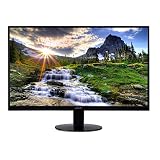
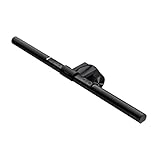
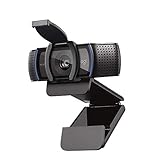
Once your second monitor is up, a couple of small additions solve the two problems every new dual-screen setup runs into: bad lighting on the desk between two screens, and a webcam that's now aimed at the wrong monitor.
What to skip
A short list of budget-monitor traps that look like savings and aren't:
- Any monitor that doesn't list panel type. If the listing highlights refresh rate and response time but says nothing about IPS, VA, or TN, assume TN and shop accordingly. Reputable listings for IPS panels almost always say so, because it's a selling point.
- 27"+ monitors stuck at 1080p. As covered above, this stretches the same pixel count over more glass and produces visibly softer text than a 24" 1080p panel. If you want 27", budget for 1440p instead.
- High refresh rate as the headline feature on a monitor meant for office work. Paying extra for 144Hz on a screen that will display email and spreadsheets is money better spent on panel quality or resolution.
- No VESA mount. A handful of the cheapest monitors skip the standard mounting holes entirely, which locks you out of a monitor arm later even if you decide you want one. Check the spec sheet, not just the photos.
- Glossy "high gloss" budget panels for a desk near a window. They look punchy in product photos and turn into a mirror the moment there's a light source behind you. Matte/anti-glare coatings are the better default for most desk setups.
The honest bottom line: a good budget monitor in 2026 is genuinely good — IPS panels, decent color, VESA mounts, and 75Hz+ refresh have all trickled down to the sub-$150 tier over the last few years. You're not settling by buying budget here the way you might have five years ago. You just need to know which four specs actually matter and ignore the rest of the box copy.
Frequently asked questions
Is a bigger monitor always better for a second screen?
No — bigger only helps if the resolution scales with it. A 27" monitor stuck at 1080p looks softer than a 24" monitor at the same resolution, because the same number of pixels is spread over more physical space. Match size to resolution: 24" with 1080p, 27" with 1440p, 32"+ with 4K.
Do I need a high refresh rate monitor if I'm not gaming?
No. 60Hz is completely sufficient for email, documents, browsing, spreadsheets, and video calls — the things most people actually use a second monitor for. Refresh rate matters for fast-moving content like competitive gaming; it's not a meaningful upgrade for static office work, so don't pay a premium for it on a work-focused second screen.
What's the difference between IPS and VA panels, and which should I buy?
IPS panels have wider, more consistent viewing angles and more accurate color, making them the better default for general work, text, and photo viewing. VA panels have deeper contrast and blacks, which suits movies and dark content, but narrower viewing angles. For a second monitor used for work, IPS is the safer default unless you have a specific reason to prefer VA's contrast.
Should I avoid TN panels entirely?
For a second monitor doing text and office work, yes. TN panels are the cheapest to manufacture and have weak color accuracy and poor viewing angles — text and color visibly shift if you're not looking at the screen dead-on. TN still has a place in ultra-budget gaming monitors chasing the fastest possible response times, but it's not a great fit for a general-purpose second screen.
When is a second monitor worth it versus buying an ultrawide?
A second monitor is better when your work is genuinely two separate tasks — chat and work, reference material and writing — since the bezel between screens keeps them visually distinct. An ultrawide is better for one continuous task that benefits from extra horizontal space, like video editing timelines or wide spreadsheets, and it can replace two monitors with one cable and one power brick for roughly the combined price of two decent budget screens.
What's the single most important spec on a budget monitor?
Panel type, even though it's usually the least advertised. It affects color accuracy and viewing angles more than resolution or refresh rate does for typical work use, and it's often buried in the fine print rather than the headline bullet points. Check for IPS before anything else.
The AI voice tool creators actually use
If any part of your setup exists to record, narrate, or publish content: ElevenLabs turns written text into narration that passes for human. We use it ourselves. Free tier is 10,000 characters a month, no card required.
Try it free →Affiliate link — supports the site at no cost to you.