You plug in your USB-C hub. Your external monitor flickers. Your keyboard stops responding for three seconds. Your file transfer dies halfway through. You unplug, replug, curse quietly, and wonder if you're the problem. You're not. The hub is.
Random disconnections are the defining frustration of cheap USB-C hubs, and the market is flooded with them. Most of the hubs sold on Amazon for $25–40 are built around bargain-bin chipsets with no thermal management, inadequate power delivery negotiation, and bus power budgets that collapse the moment you add a second device. The good news: once you know what to look for, the reliable ones are easy to spot — and some aren't even that expensive.
Why USB-C hubs disconnect in the first place
The short answer is power and protocol. USB-C hubs have to do several things simultaneously: negotiate power delivery with your laptop, translate data protocols, drive display output, and distribute bus power to connected devices. Cheap hubs cut corners on all four.
The most common culprit is bus power starvation. A USB-C port on your laptop provides a fixed power budget — typically 4.5W to 15W depending on whether the port supports Power Delivery passthrough. A hub draws from that same budget to run its internal chipset and power every device you've connected. When you plug in a keyboard, a mouse, a USB drive, and a webcam, a poorly engineered hub runs out of headroom and starts power-cycling devices to compensate. This shows up as the random disconnect that drives you insane.
The second culprit is chipset quality. The difference between a $30 hub and a $130 hub is largely the silicon inside. Tier-1 chipsets from companies like VIA Labs, Genesys Logic, and Realtek handle protocol translation cleanly and have robust error recovery. Generic chipsets — the kind that power the no-name hubs ranked by "Deals" on Amazon — drop packets under load, mishandle USB 3.2 Gen 2 speeds, and struggle with simultaneous 4K output plus high-speed data. The chipset isn't listed on the product page, but you can often identify it from teardown reviews and tech community forums.
The third culprit is thermal throttling. Hubs get warm during use — that's normal. What's not normal is a hub with no thermal design getting hot enough to throttle its own chipset to protect itself. When that happens, data rates drop, devices disconnect, and the hub "recovers" once it cools. This is why cheap aluminum hubs (better heat dissipation) often outperform cheap plastic hubs even with identical chipsets.
Bus-powered vs. self-powered: which do you actually need?
This is the single most important decision you'll make when buying a hub, and most people skip it entirely.
Bus-powered hubs draw all their power from your laptop's USB-C port. They're compact, cable-free, and convenient — and they work perfectly as long as your connected devices don't collectively exceed the port's power budget. For a keyboard, mouse, and a USB stick: totally fine. For a keyboard, mouse, external hard drive, webcam, and phone charging simultaneously: you're going to have a bad time.
Self-powered hubs (also called "powered hubs") plug into the wall with their own power adapter. They don't draw device power from your laptop — they run their own power rail independently. This eliminates bus power starvation entirely. Your connected devices get clean, stable power regardless of what your laptop's port is doing. If you've ever had a hub disconnect specifically when you plug in a power-hungry device, a self-powered hub fixes this immediately and permanently.
The rule of thumb: if you connect more than 3 peripherals, you need a powered hub. If you're driving an external display, you almost certainly need a powered hub. If your current hub disconnects and you can't figure out why, switching to a powered hub will fix it 80% of the time.
7-in-1 vs. 12-in-1: more ports aren't always better
Marketing loves port counts. "12-in-1 hub!" sounds more impressive than "7-in-1 hub." In practice, more ports on the same bus means more devices competing for the same bandwidth allocation. A well-engineered 7-in-1 hub with dedicated lanes for display output and USB 3.2 will outperform a crammed 12-in-1 running everything through a single USB 3.0 bus.
What actually matters in the spec sheet:
- Dedicated HDMI/DisplayPort controller — not shared with the USB data bus
- USB 3.2 Gen 2 on the data ports — for actual 10Gbps transfers, not the theoretical 5Gbps of Gen 1
- Power Delivery passthrough of 85W+ — so the hub doesn't throttle your laptop charging
- SD/MicroSD with UHS-I support — not just "SD card reader" (which could be USB 2.0-speed)
A 7-in-1 with all of the above is worth more than a 12-in-1 that checks none of them.
DisplayLink vs. native display output — what's the difference?
If you want to connect more than one external monitor through a hub, you'll run into DisplayLink. It's worth understanding before you buy.
Native display output uses your laptop's GPU directly through the USB-C/Thunderbolt connection. It's zero-latency, hardware-accelerated, and handles high refresh rates and HDR without issues. Most single-monitor hubs use native output. The limitation: Apple Silicon Macs support only one external display natively (unless you're on an M3 Pro or higher).
DisplayLink is a software-based display technology. The hub contains a DisplayLink chip that compresses display data and sends it over USB, which your laptop decodes using a driver and CPU cycles. It bypasses the GPU limitation and allows multiple external displays even on base M1/M2/M3 Macs. The tradeoffs: you need to install a driver, it uses CPU (5–10% on modern chips), and there's occasional lag or color artifacts. For productivity work it's fine; for gaming or video work, stick with native.
The Anker 737 below uses native Thunderbolt output. If you need dual displays on an M1/M2 Mac, you'd want a hub with DisplayLink — but for most users on a single external monitor, native is always the better choice.
Thunderbolt 4 vs. USB4 vs. USB 3.2 — the honest explanation
These protocol names get used interchangeably in marketing and they are absolutely not the same thing.
USB 3.2 Gen 2 tops out at 10Gbps. It's what most laptop USB-C ports support. Most hubs are built for this. It's plenty for keyboards, mice, drives, and 4K display at 60Hz.
USB4 is 20–40Gbps and shares the Thunderbolt 4 spec (Intel and USB-IF collaborated on this). USB4 devices are backward compatible with USB 3.2 and Thunderbolt 3. Not all USB4 ports hit 40Gbps — read the fine print.
Thunderbolt 4 is Intel's branded implementation of USB4 at 40Gbps. It guarantees minimum performance specs that USB4 doesn't — including support for two 4K displays and PCIe tunneling. If your laptop has a Thunderbolt 4 port and you connect a Thunderbolt 4 hub, you get the full 40Gbps. If you connect a USB-C hub to a Thunderbolt 4 port, it works but negotiates down to USB 3.2 speeds.
For most people: USB 3.2 Gen 2 hubs are fine. If you're transferring large files constantly, editing video from external drives, or need maximum display bandwidth, a Thunderbolt 4 hub is worth the extra spend.
The hubs worth actually buying
These are the ones with documented stable chipsets, real-world testing behind them, and reviews that don't mention random disconnects. In order of budget:
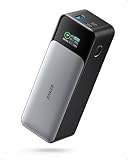
The Anker 737 is the hub I'd recommend to most people. It's not cheap, but it's built correctly: dedicated display controller, robust Power Delivery negotiation, and Anker's track record of not shipping garbage. It handles a 4K monitor, wired ethernet, a webcam, and a USB drive simultaneously without breaking a sweat. The 85W passthrough means your laptop charges at full speed even with everything connected.
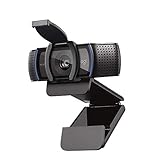
The C920s earns a spot here because it's the webcam that plays nicely with hubs. It draws a conservative amount of bus power, negotiates USB bandwidth cleanly, and has never caused a disconnect in any setup I've used it with. If your current webcam is causing hub instability, this is the swap to make.
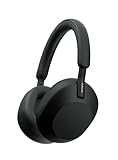
This is the move people underestimate: every device you take wireless is one fewer thing fighting for bus power on your hub. Moving to wireless headphones, a wireless keyboard, and a wireless mouse can cut your hub's connected device count in half — which dramatically improves stability for the devices that genuinely need wired connections.
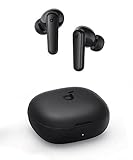
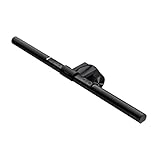
The ScreenBar is worth calling out specifically because it runs off a USB-A port on your hub without causing any instability. It draws a well-behaved 5W and doesn't negotiate — it just powers on. It's also genuinely excellent as a monitor light. If your hub has a spare USB-A port, this is one of the best things to plug into it.

The cable situation that comes with a proper powered hub setup — hub power brick, monitor cable, ethernet cable, laptop charger — is real. The cable management box doesn't fix the underlying complexity, but it hides it cleanly.
The brands that consistently don't disappoint
If you're shopping outside this specific list, these are the brands with documented track records of building hubs that actually work:
- Anker — the most reliable mass-market hub brand. Their PowerExpand line uses proper chipsets and they stand behind their products. Start here if you're buying on Amazon.
- CalDigit — the professional-grade choice. Their TS4 Thunderbolt 4 dock ($250+) is what video editors and developers use when they need maximum reliability and bandwidth. More expensive, genuinely worth it for power users.
- Satechi — well-engineered hubs with good aluminum construction that manages heat. Their multi-port adapters are popular for MacBook users and have a strong reputation for stability. The aluminum chassis handles thermal load better than plastic competitors at the same price.
- OWC — the Mac-specialist brand. Their Thunderbolt docks are expensive and built like professional equipment. Recommended for anyone doing video or audio production work where reliability isn't optional.
Brands to approach with caution: anything sold under a name you've never heard of, especially if the listing shows multiple brand names or the product images have watermarks from different manufacturers. These are typically the same generic chipsets in different plastic shells, and the disconnect problems are real.
Frequently asked questions
Why does my USB-C hub randomly disconnect?
The most common causes are bus power starvation (too many devices drawing from one port), a low-quality chipset that can't handle the protocol load, or thermal throttling from a hub with no heat management. The fix: switch to a self-powered hub, reduce the number of bus-powered devices connected, or replace the hub with one built around a reputable chipset like VIA Labs or Genesys Logic.
Do I need Thunderbolt 4 or will a USB-C hub work?
For most users: a USB 3.2 Gen 2 hub is sufficient. You get 10Gbps for data, stable 4K/60Hz display output, and Power Delivery passthrough. Thunderbolt 4 is worth the extra cost if you're connecting two 4K displays, transferring large video files constantly, or using high-bandwidth external storage like fast NVMe drives. Check whether your laptop actually has Thunderbolt 4 ports first — connecting a Thunderbolt hub to a USB 3.2 port negotiates down anyway.
What's the maximum number of devices a bus-powered hub can handle?
It depends on the port's power budget, but a safe rule of thumb is 3–4 low-power devices (keyboard, mouse, USB stick, webcam) on a bus-powered hub before you start risking instability. Any powered device — an external hard drive, a phone being charged, anything with its own power adapter that still draws from USB — can push you over the limit. When in doubt, go powered.
Is DisplayLink worth it for dual monitors?
For productivity on a Mac with an M1/M2 chip: yes, because it's the only practical way to run two external displays without upgrading to an M3 Pro or higher. For gaming, video editing, or any work where display latency matters: no, the CPU overhead and occasional color artifacts make it a poor choice. Install the DisplayLink driver, test it, and decide — it's easy to uninstall if it's not working for your workflow.
Can a bad USB-C hub damage my laptop?
A poorly engineered hub is unlikely to damage your laptop, but it can cause power delivery issues that affect your battery over time. Specifically: hubs that incorrectly negotiate Power Delivery contracts can result in your laptop charging more slowly, not charging at all, or in rare cases triggering overvoltage protection. Stick with hubs from reputable brands that list their Power Delivery specs explicitly — and make sure the PD passthrough matches your laptop's charging requirement.
Why does my hub get so hot?
USB-C hubs convert power and translate protocols — both generate heat. A hub running warm (not hot to the touch) during use is normal. A hub you can't hold comfortably is either overloaded, has poor thermal design, or both. Aluminum-body hubs dissipate heat significantly better than plastic ones. If your hub is consistently overheating, reduce the connected device count, move it to a more ventilated location, or replace it with a model that has a metal chassis.